Guide
How to rearrange your iPhone home screen from your Mac
Last updated: 25 September 2026
Can you rearrange iPhone apps on a computer? Yes. iTunes lost that feature years ago, but as of 2026 there are three ways to edit and organize your iPhone home screen on a Mac: Apple Configurator, iPhone Mirroring, and Homepage Panda. None of them needs a jailbreak. Each has a different set of limits, so here is what each one actually does, followed by a comparison table.
1. Apple Configurator (free, USB)
Apple Configurator is Apple's device-management app for Mac, aimed at schools and businesses, but it works on a personal iPhone too.
- Install Apple Configurator from the Mac App Store and connect your iPhone with a USB cable.
- In the All Devices view, right-click your iPhone and choose Modify → Home Screen Layout.
- Drag icons in the window that opens. Dropping one icon on another creates a folder.
- Click Apply to send the layout to the phone.
What to expect. The editor is basic and shows one page at a time. Users on Apple's own forums report that applying a layout removes widgets and brings every app that lived only in the App Library back onto the home screen, and that dropping an icon between two others can create a folder by accident. There is no search, no sorting, no undo, and no backup of the previous layout.
2. iPhone Mirroring (free, macOS 15 or later)
Since macOS Sequoia, a Mac can show your iPhone's screen in a window and let you control it with the trackpad. That includes wiggle mode.
- Check the requirements: a Mac with Apple silicon or a T2 chip on macOS 15 or later, an iPhone on iOS 18 or later with a passcode, both signed in to the same Apple Account with two-factor authentication, Bluetooth and Wi-Fi on, and the iPhone locked and nearby.
- Open the iPhone Mirroring app on the Mac.
- Click and hold on the home screen, the same way you would touch and hold on the phone, to enter wiggle mode.
- Drag icons with the trackpad. Swipe or scroll to move between pages.
What to expect. It is exactly wiggle mode, with a mouse instead of a finger: one page visible at a time, one icon at a time, and dragging an app to another page still means holding it at the edge and waiting. There is no search, no sort, no batch tools, and no backup. Apple states that iPhone Mirroring is currently unavailable in the European Union.
3. Homepage Panda (paid, USB)
Homepage Panda is a Mac app built for this one job. It reads the layout over USB, shows every page side by side, and applies your changes in one click.
- Download Homepage Panda, open the .dmg and drag it to Applications. Connect your iPhone with a USB cable and tap Trust on the phone.
- Click Load from iPhone. Every page, folder and widget appears in the editor.
- Drag apps between pages, drop one app on another to create a folder, or use the tools: search across all pages and folders, sort alphabetically, delete all folders, clean up pages in one click. Undo with Cmd+Z.
- Click Apply to iPhone. A backup of the previous layout is saved first, so you can restore it later.
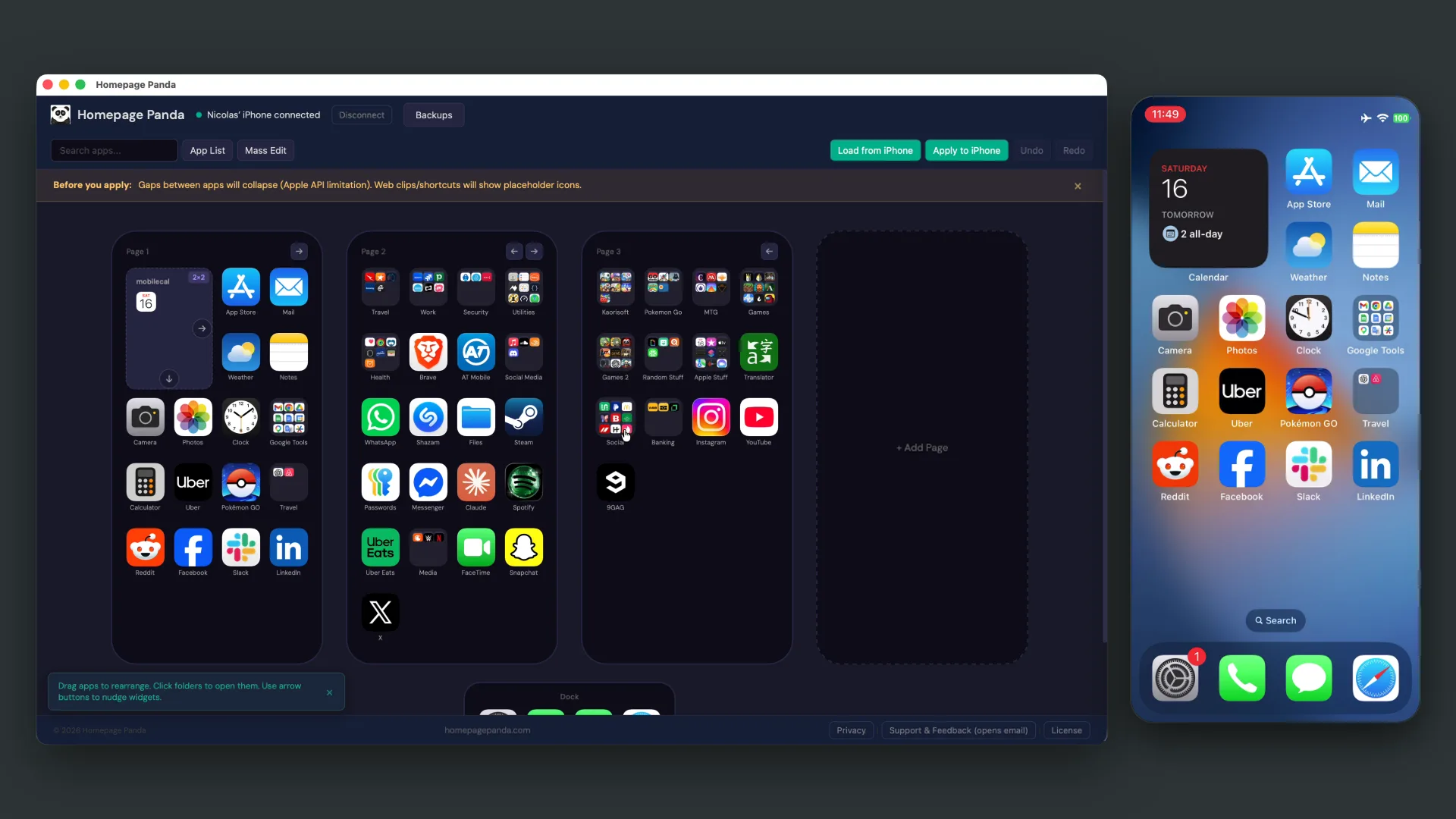
What to expect. Free to download and try. Applying a layout to the phone needs a one-time license, $9.99 for up to 2 Macs. It runs on any Mac with macOS 11 or later, Intel or Apple silicon, with iPhones on iOS 14 through iOS 27, and it works in the EU because it uses a cable, not Mirroring.
The honest limit. Apple's layout API only carries the order of items, for every tool including Configurator. So on iOS 18 and later, gaps you added between icons and widgets you dragged to a custom spot go back to their in-order position when a layout is applied. Apps that live only in the App Library are added back to the home screen by iOS, and hidden pages become visible again. Homepage Panda lists the affected apps before you apply so you can redo those on the phone afterwards.
Side by side
| Apple Configurator | iPhone Mirroring | Homepage Panda | |
|---|---|---|---|
| Price | Free | Free | Free to try, $9.99 to apply |
| Connection | USB cable | Wireless, phone nearby and locked | USB cable |
| Mac required | Any Mac | Apple silicon or T2, macOS 15+ | Any Mac, macOS 11+ |
| iPhone required | Any recent iOS | iOS 18+ | iOS 14 to 27 |
| Works in the EU | Yes | No | Yes |
| See all pages at once | No | No | Yes |
| Move many apps at once | No | No | Yes |
| Search for an app | No | No | Yes |
| Sort alphabetically | No | No | Yes |
| Keeps widgets | Users report no | Yes (edits in place) | Yes |
| Keeps iOS 18 gaps | No | Yes (edits in place) | No |
| Undo / redo | No | iOS 27 undo on the phone | Yes |
| Backup and restore layouts | No | No | Yes |
| No jailbreak | Yes | Yes | Yes |
Which one should you use?
- You have a couple of icons to move: iPhone Mirroring, if your Mac and region support it. Nothing to install.
- You want a free rebuild and don't use widgets: Apple Configurator. Expect to redo widgets afterwards.
- You have a lot of apps, want to see every page, search, sort, and keep a backup: Homepage Panda. Try it free and pay only when you apply.
Questions people ask
Can you rearrange iPhone apps on a computer?
Yes, on a Mac, with any of the three tools above. All three use Apple's standard protocols and none requires a jailbreak.
Can you edit your iPhone home screen on a Mac?
Yes. Apple Configurator and Homepage Panda edit the layout over USB and apply it to the phone. iPhone Mirroring shows the phone's screen on the Mac and lets you use wiggle mode with the trackpad.
How do I rearrange iPhone apps on a PC?
None of the three Mac methods run on Windows. AnyTrans and 3uTools advertise home screen tools for Windows; we have not tested them on current iOS versions.
Does iPhone Mirroring work in the EU?
No. Apple states that iPhone Mirroring is currently unavailable in the European Union. Apple Configurator and Homepage Panda work everywhere because they use a cable.
Why did Apple Configurator remove my widgets?
Apple's layout API only carries the order of items. Configurator rebuilds the layout from that order, and users report it drops widgets and brings App Library-only apps back. Homepage Panda keeps widgets in the layout, but the same API means gaps and custom widget spots are collapsed on apply.
macOS 11+ · free to try · $9.99 once to apply changes