Version 0.9.0
What’s new in Homepage Panda 0.9.0
31 October 2026 · Free update for everyone
This release is about cleaning up: finding the apps you don’t need, getting rid of them in one go, and making sure what you see in the editor is exactly what lands on your iPhone.
Find apps stuck in the past
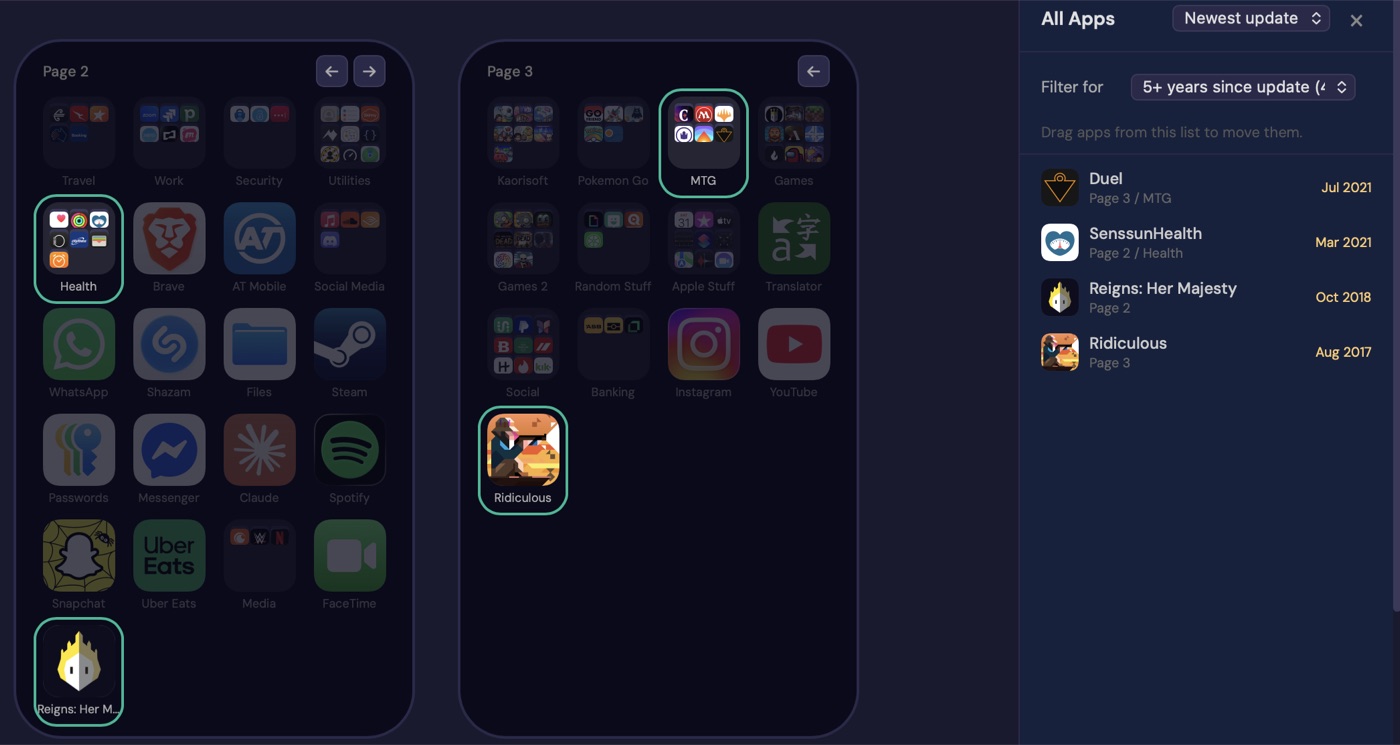
Apps can quietly go years without an update, and an app nobody maintains can stop working well. Open App Store Dates and click Check App Store dates: every app on your Home Screen gets its last update date in the All Apps list.
- Sort All Apps by newest or oldest update.
- Filter for apps updated in the last year, 1+ year or 5+ years ago, built-in Apple apps, or apps no longer on the App Store. Matching apps light up right where they sit on your pages.
- Pick your App Store country (it starts with your iPhone’s region), so the dates match the store you actually use.
- Nothing is sent until you click. Only app IDs and the country go straight to Apple, never to us.
Delete apps in bulk
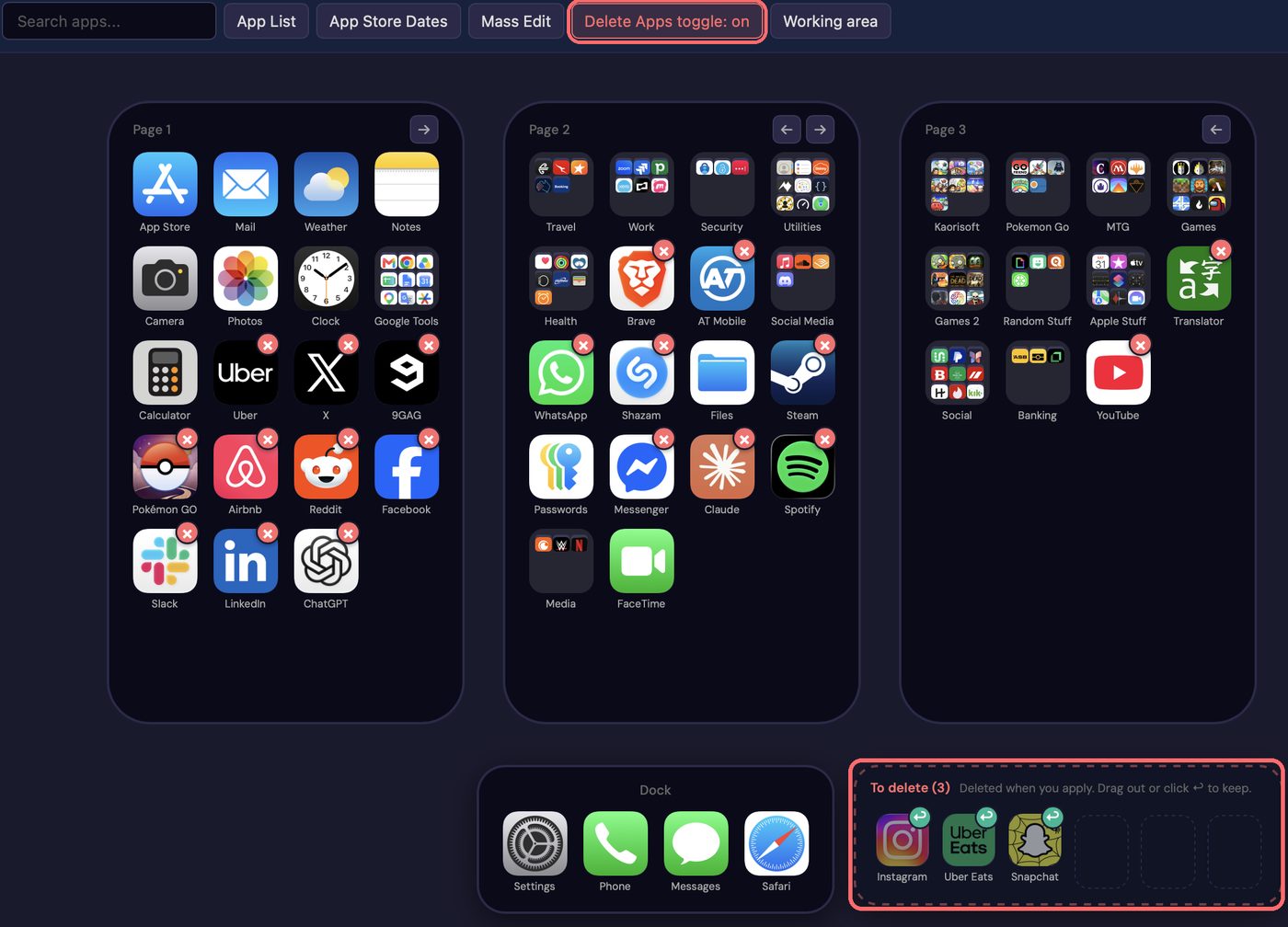
Turn on Delete Apps and every App Store app gets a red cross. Click it and the app moves to a To delete tray. Nothing happens on your iPhone yet, so you can change your mind: drag it back, click its keep button, or undo.
When you apply, one confirm lists the apps, they’re deleted with their data, and then your new layout goes on. If a delete fails, Apply stops before touching your layout. Apple’s built-in apps can’t be deleted here, and offloaded apps (the ones with a cloud) are deleted on the iPhone itself.
A Working area for apps without a home
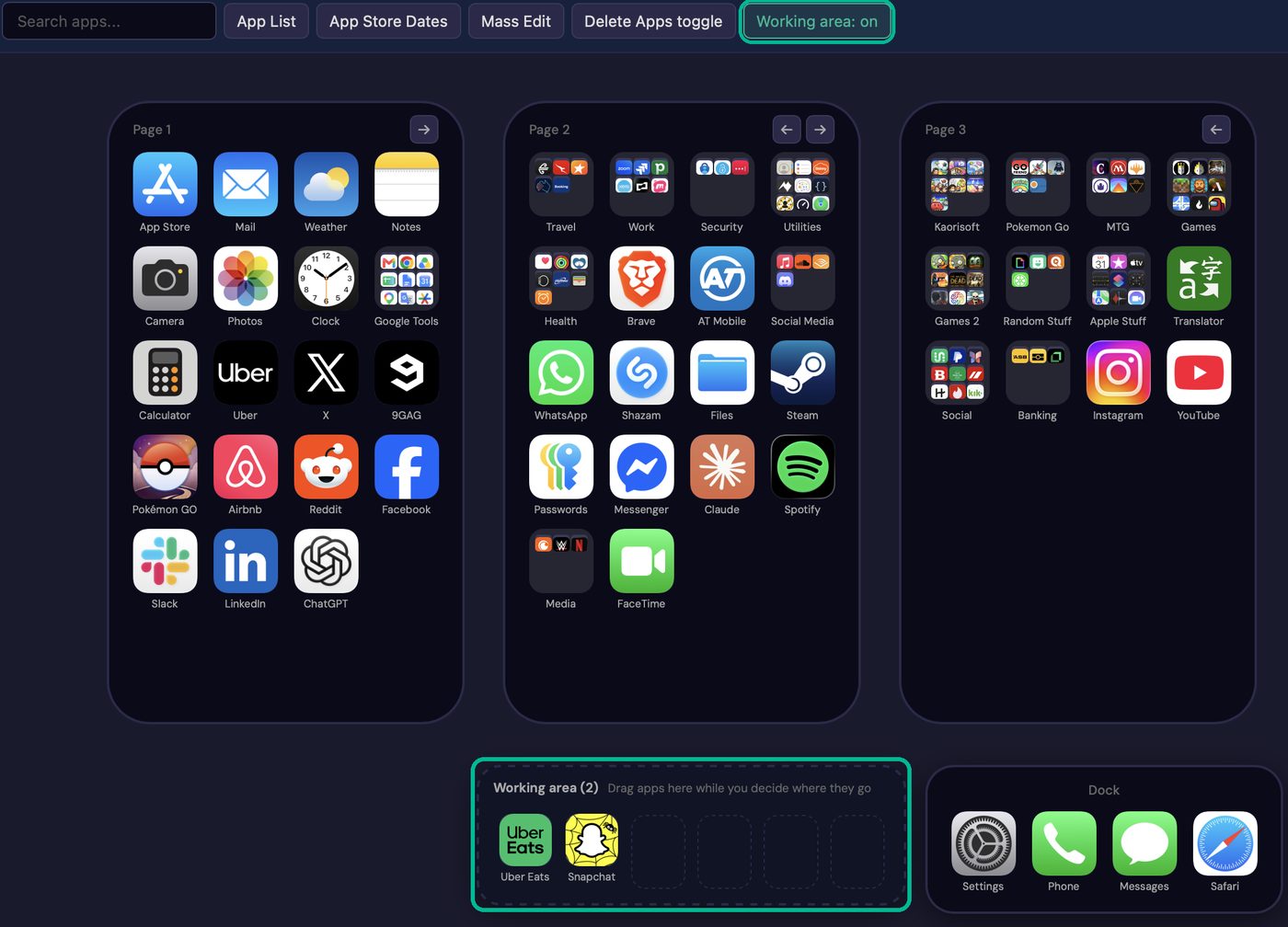
Big reshuffle? Turn on the Working area and park apps and folders there while you decide where they go. Apply reminds you to place them first, so nothing gets lost.
No more surprises from hidden or offloaded apps
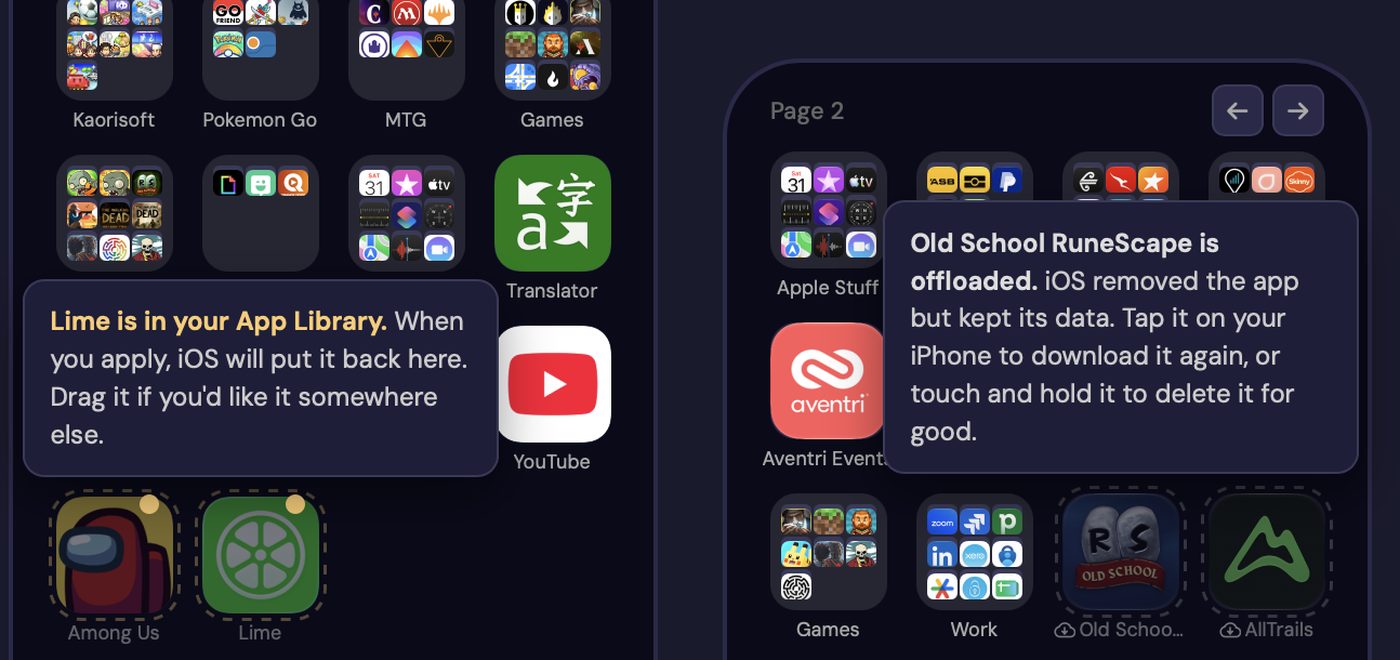
App Library apps: iOS puts apps from your App Library back on your Home Screen whenever a layout is applied. Now you see them coming: they show as faded icons with a yellow dot exactly where iOS will put them, and you can drag them somewhere else first. A small “!” next to Apply lists them.
Offloaded apps: apps iOS removed to save space (the ones with a cloud on your iPhone) now look the same in the editor: faded, with a cloud before the name. Hover one to see what that means, and how to download it again or delete it for good.
And a lot more
- What you see is what you get. Widgets always sit where iOS allows them, so the editor matches your iPhone after Apply.
- Apply shows its progress, step by step.
- Backups are grouped by session (Loaded, Before apply, Applied) with the app count for each.
- Check for updates any time from the footer, next to the version number.
- Better support: a local error log you can include in support emails, if you choose.
- Plus a clearer privacy panel, a tidier editor, and many fixes.
See every change in the full changelog.
Already have it? Open Homepage Panda and click Update & Restart. Your license and backups carry over.