Version 0.9.1
What’s new in Homepage Panda 0.9.1
November 2026 · Free update for everyone
This release fixes the two biggest complaints about arranging a Home Screen from a computer: apps you keep in the App Library now stay there, and empty spaces you leave on a page stay empty on your iPhone.
Your App Library stays put
Until now, applying a layout made iOS put every App Library app back on your Home Screen. Not anymore. Apps you keep off your Home Screen stay in the App Library when you apply.
- The App Library is now a page of its own after your last Home Screen page, like on the iPhone, with the apps you keep off your Home Screen in A to Z order. The App Library button jumps to it.
- Drag an app from a page into the App Library to hide it from your Home Screen without deleting it.
- Drag one out of the App Library onto a page to bring it back, exactly where you drop it.
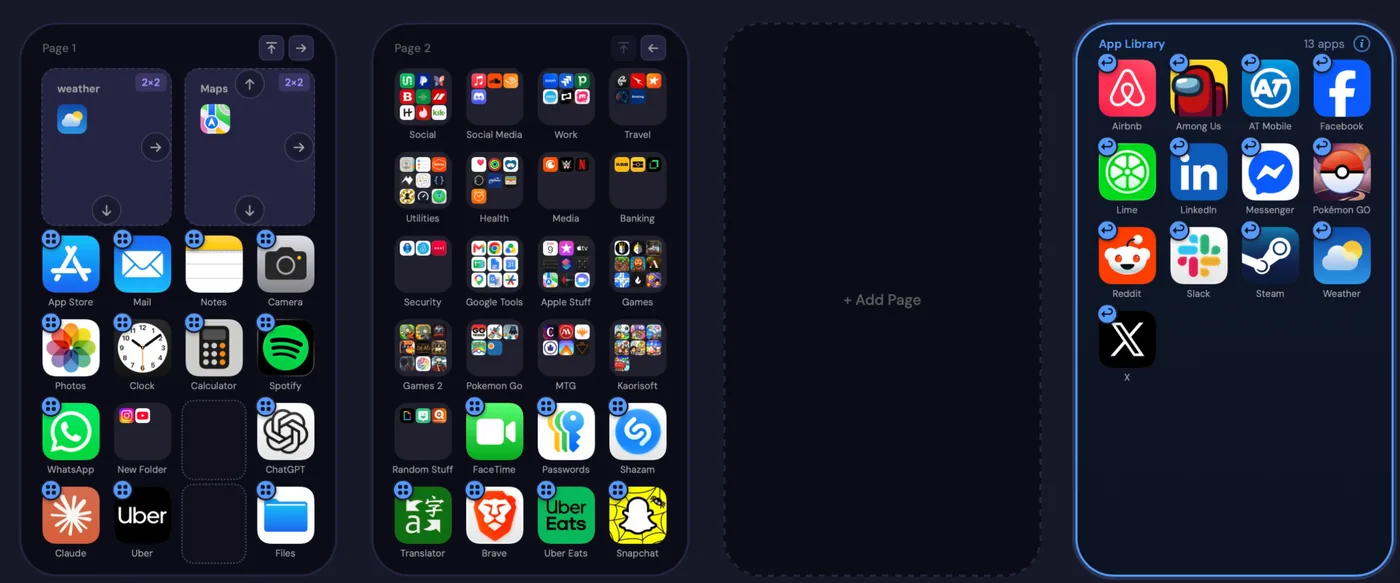
The “!” warning next to Apply and the faded placeholder icons are gone, because nothing comes back on its own anymore.
Empty spaces stay where you leave them
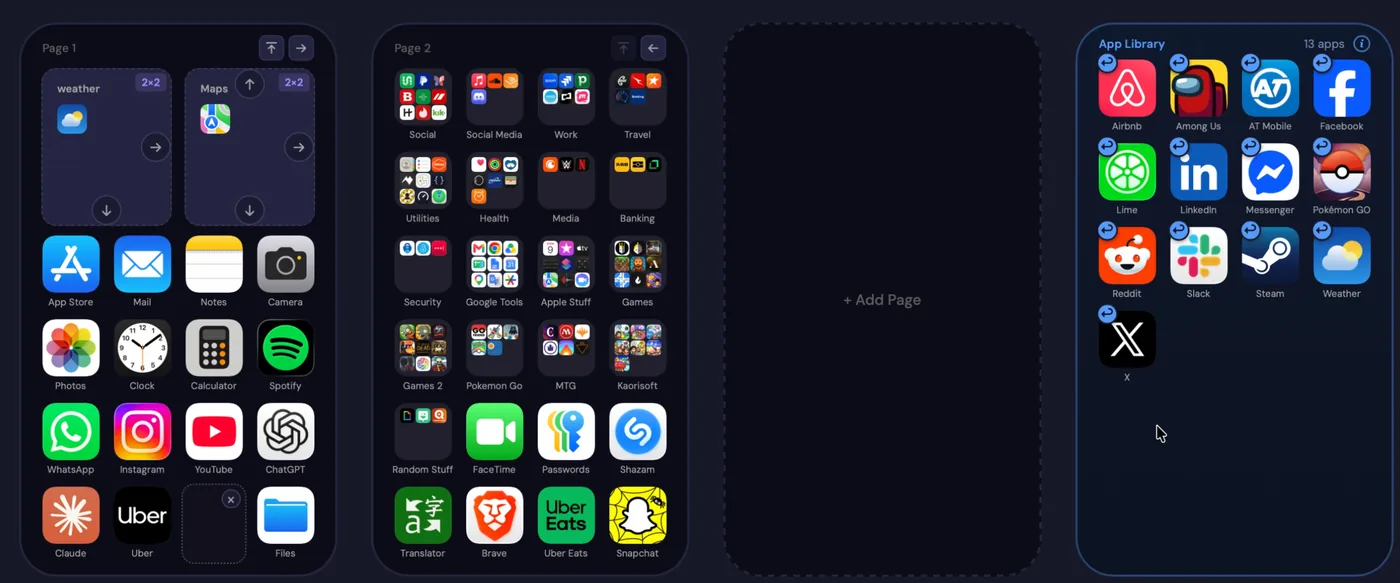
Move an app off a page and its spot stays empty, like on an iPhone. The empty spot is still empty on your iPhone after you apply, and it is there again the next time you load. A dotted outline marks each one; click its × to close it.
Pages with widgets keep their empty spaces too. Two limits remain from Apple’s side. A folder can only be pinned to a spot on the iPhone itself, so from here a folder after an empty space moves into it; the editor shows this as you go, and a short tip explains it. Empty spaces you made on the iPhone itself can’t be read over USB, so make them in the editor; the (i) next to Load from iPhone lists what loading can’t bring over.
App Store categories
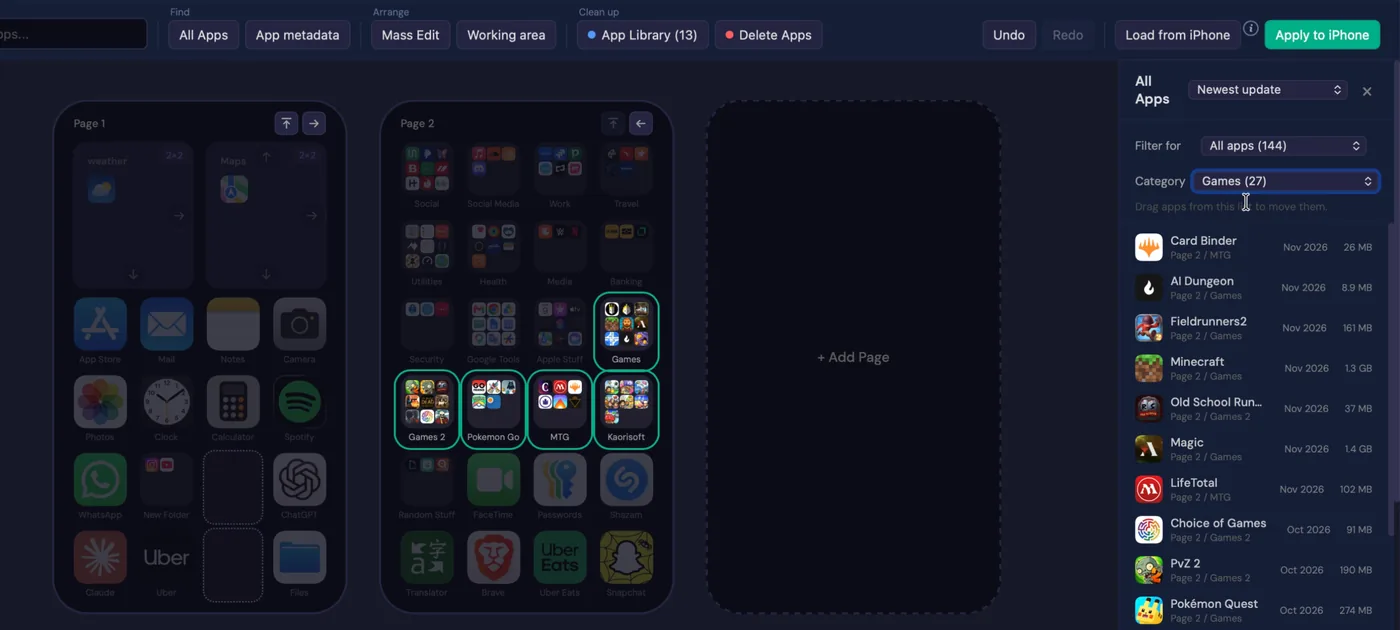
After you click Check App Store dates, the All Apps list knows each app’s App Store category and when it first came out.
- Pick a category (Games, Finance, Photo & Video...) and those apps light up on your pages.
- Sort by when apps first appeared on the App Store, newest or oldest.
- Hover an app in the list to see its category, first release and last update.
And more
- Widgets keep their settings. A Weather widget set to another city, a Scriptable script or a Contact widget stays as you set it after Apply.
- App sizes. All Apps shows how much space each app takes on your iPhone and can sort by size.
- Gravity button at the top of each page closes all its empty spaces in one click.
- Backups per iPhone. Each phone keeps its own backups, and a “Before delete” backup is saved before any app is deleted.
- Try Delete Apps free. Mark apps to delete without a license; you only need one to apply.
- Clearer wording across the app, from the start screen to the error messages.
- Plus fixes.
See every change in the full changelog.
Already have it? Open Homepage Panda and click Update & Restart. Your license and backups carry over.